

Support
How can we help?
Quick answers below. Can't find yours? Message the team and a person will get back to you.
Getting started
Make your first reel
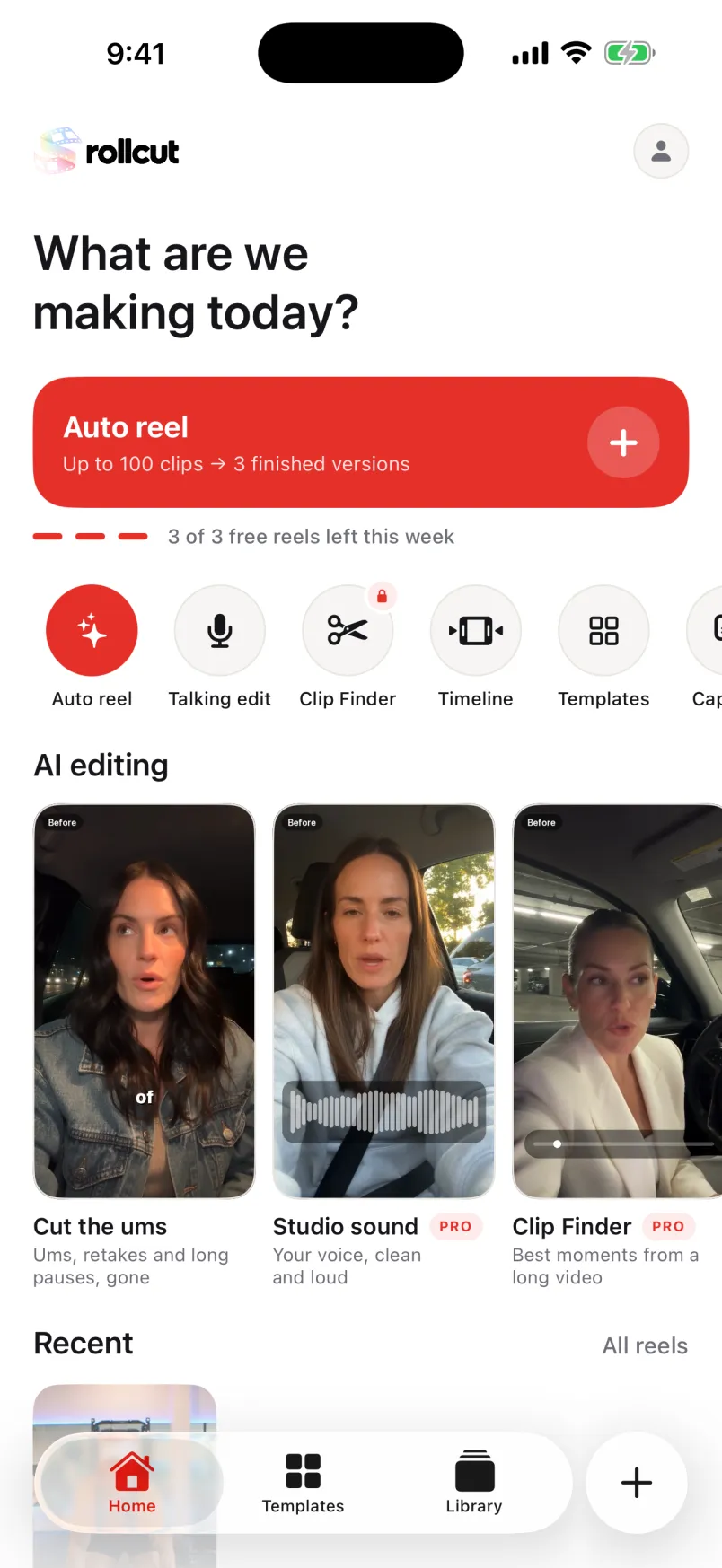
Tap New reel on Home (or Create in the tab bar) and pick your clips. You can pick up to 100 videos.
Choose AI decides and tap Make it. Rollcut watches every shot and gives you three finished versions in about a minute.
Free accounts make 3 reels every 7 days. A reel that couldn't finish doesn't count.
"AI decides" or "I'll choose"
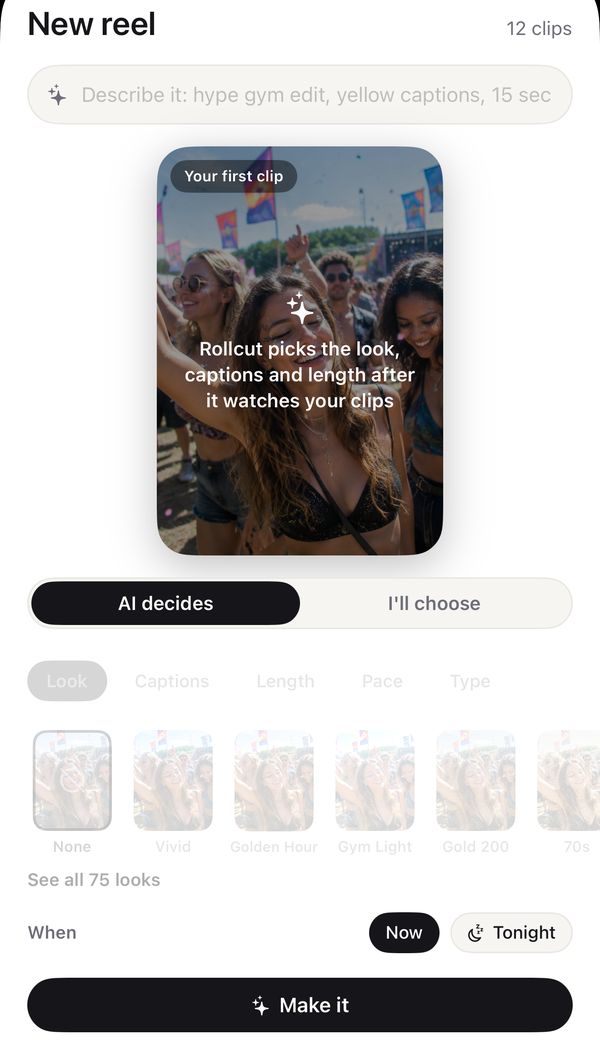
On the New reel sheet:
- AI decides: Rollcut picks the look, captions and length after it watches your clips.
- I'll choose: set it yourself with the tabs Look, Captions, Length (15, 30 or 60 sec), Pace (Slower, Normal, Faster) and Type (Auto, Montage or Talking).
You can also type what you want in the describe bar, like "hype gym edit, yellow captions, 15 sec".
Start from a template
Open Templates (or Start from a template on Home) and pick one. Each template sets the pacing, look and captions; Rollcut still picks your best moments.
Pick your clips and the New reel sheet opens on I'll choose with the template's settings filled in. Change anything before you tap Make it.
Keep using Rollcut while a reel is made
On the progress screen, tap Keep browsing. A pill above the tab bar shows how it's going; tap it to open the reel when it says Ready.
Reels are made one at a time. If you start another, it waits for the first. If you leave Rollcut, iOS may pause it; open Rollcut again to finish.
It's stuck while making my reel
Very long or 8K clips take longer. Keep Rollcut open, or tap Keep browsing and it finishes in the background.
If it doesn't move for 5 minutes, stop it (the X at the top) and try again with fewer or shorter clips. Still stuck? Report a bug from Settings > Report a bug.
Find the best clips in a long video
Podcasts, streams and vlogs up to two hours: tap Find clips in a long video on Home, choose a clip length and how many you want, then Choose a long video (up to 3).
Rollcut listens on your iPhone and ranks the moments with a score from 0 to 100. Tap a clip to open it in the editor, or Select several and Save them. Nothing is uploaded.
Clip Finder comes with Pro.
Make reels overnight
On the New reel sheet, set When to Tonight and tap Schedule for tonight. Rollcut copies your clips and makes the reel around 1 a.m. while your iPhone charges. It's waiting in Library in the morning, and you can tap Make now any time.
Overnight batches come with Pro.
Open a template someone shared
A Rollcut template link opens a Template sheet with who made it. Tap Use this template, pick your own clips, and they're cut to the same rhythm, look and captions. Their video is never shared, only the recipe.
Which iPhones work?
Any iPhone on iOS 26. Some speech and AI features run best on iPhone 15 Pro and newer, and everything still works on older models.
Editing & the timeline
The three versions
Every reel comes in three versions. Swipe between them, or tap A, B or C on the right. Montage reels get Fast & fun, Story order and Slow & warm; talking reels get Clean, Tight and Short.
The one on screen is the one you save.
Trim, split, move or delete moments
Tap Edit in the tool bar.
- Shorter / Longer change the length in 15-second steps.
- Faster / Slower change the pace.
- Split at playhead cuts the moment under the playhead in two.
- Tap a moment, then Trim −, Trim +, move it earlier or later, or Delete it.
Use the timeline
Tap Timeline on the right of the editor for full control.
- Drag a clip's edges to trim, long-press to reorder, pinch to zoom, and tap Add a clip.
- With nothing selected: Split, Text, Captions, Overlay, Audio, Voiceover, Transitions.
- With a clip selected: Split, Delete, Duplicate, Speed, Volume, Replace, Reframe, Look.
- Text can be dragged, pinched and rotated; double-tap to edit it, and use Style and Animate.
- Undo and Redo are next to play.
Speed, overlays, audio files, voiceover on the timeline and some transitions come with Pro. Tap Export to save.
Transitions
On the timeline, tap the seam between two clips (or Transitions). Free: None, Fade, Dissolve, Dip black, Slide left and Slide right. With Pro: Dip white, Slide up, Zoom in, Zoom out, Whip, Spin, Glitch, Flash and Blur. Set the length, or Apply to all.
Hook score
Tap Hook on the right of the editor. You get a score out of 100 for how well the first seconds hold attention, plus fixes like Open on the best moment or Turn on captions.
Everyone sees the score. One-tap fixes, Fix all and suggested text hooks come with Pro. Each fix can be undone.
Director: say what to change
Tap Director and type what you want, like "Make it punchier" or "15 seconds". It happens live, on your iPhone, and every change can be undone.
Director comes with Pro.
Studio sound, reframe and background
In the editor, tap Pro for talking videos:
- Studio sound: Off, Light or Full.
- Auto-reframe and Zoom on emphasis keep you in frame.
- Background: blur it, or use a colour, a gradient or your own photo.
These come with Pro.
B-roll from your photos
Tap B-roll in the editor and switch on Auto b-roll. Your photos cover long shots while you keep talking (shots over 4 seconds). Tap a cover to Swap picture or Remove b-roll. Rollcut needs access to your photos for this; they never leave your iPhone.
Auto b-roll comes with Pro.
Captions & looks
Caption styles and position
Tap Captions in the editor and pick one of 24 styles, or Off. Position puts them at the Bottom, Middle or Top. On the timeline, tap a caption word and Edit to fix a word the transcript got wrong.
Why are captions missing?
Captions appear when someone's talking. If no speech was found, there's nothing to caption.
Captions use speech recognition on your iPhone. The first time, iOS may download its speech model in the background: leave the phone on Wi-Fi for a few minutes and try again.
Translate captions
In Captions, open the language menu and pick a language under Translate captions (18 languages). Translation runs on your iPhone with Apple Translation; some languages need a one-time download.
Long-press Save to save with captions in another language. Translated captions come with Pro.
Looks and color
Tap Looks for 75 looks in 11 categories, or Auto color. Strength sets how much of the look shows.
For fine control, tap Adjust: Exposure, Contrast, Saturation, Vibrance, Warmth, Tint, Highlights, Shadows, Fade, Sharpness, Vignette and Grain. Reset all goes back to the start.
Record a voiceover
Tap Voice, then Record a voiceover. The reel plays from the start while you talk, and the music dips under your voice. Record again or Remove any time. It's free.
Saving & posting
Save your reel
Tap Save in the editor. The reel goes to Photos and to Your reels in Rollcut.
If Photos access is off, it's still saved in Rollcut. To fix Photos: iPhone Settings > Rollcut > Photos, and check your iPhone has free space.
Post to TikTok or Instagram
After saving, tap Open in TikTok or Open in Instagram to post it there, or Share to send it anywhere. They're dimmed if the app isn't installed.
Share your edit as a template
Tap Share as template after saving (or in the share menu). Rollcut makes a link with your edit's rhythm, look and captions, and an optional cover frame. Anyone with Rollcut can use it with their own clips. Your video is never shared.
Add your own watermark
Free reels carry a small Rollcut mark. With Pro or higher, put your own mark there instead: Settings > Watermark, switch on Add to every video, choose Text and type your handle.
Pick the Corner, and set Size and Opacity. At the bottom it's shown a little smaller so it stays clear of captions. It's added when you save.
Add your logo as a watermark
Settings > Watermark, switch on Add to every video and choose Image. Pick your logo from Photos or Files: a PNG with a transparent background works best.
Set the Corner, Size and Opacity, and switch on Soft shadow if a light logo disappears on bright footage. Your logo comes with Pro or higher and replaces the Rollcut mark on every reel you save.
Plans & billing
What each plan includes
- Free: 3 reels every 7 days, with the editor and timeline, all 75 looks, all 24 caption styles and voiceover. Free reels carry a small Rollcut mark.
- Pro: unlimited reels, plus Clip Finder, Director, Hook fixes, the Pro tools, auto b-roll from your camera roll, translated captions, speed, overlays and music on the timeline, your own watermark (text or your logo, in Profile > Watermark) instead of the Rollcut mark, and overnight batches.
Prices are on the plans screen: Profile > Upgrade (or See plans). Pro makes unlimited reels, with no credits.
Restore purchases
Bought on another iPhone, or reinstalled? Settings > Help > Restore purchases, or Restore on the plans screen. Signing in to the same Rollcut account also brings your plan with you.
Cancel your plan
If you subscribed in the app: iPhone Settings > your name > Subscriptions > Rollcut. If you subscribed on the web: your Rollcut dashboard > Plan & billing. You keep your plan until the end of the period you paid for.
Refunds
Rollcut subscriptions aren't refundable, including partial periods and plans you forgot to cancel. The exception is a billing mistake on our side (for example a double charge or the wrong price): email billing@userollcut.app with your account email and the receipt.
For App Store purchases, Apple handles refunds. Email us first; if the mistake was ours we'll help you request it at reportaproblem.apple.com. Where the law gives you a right to a refund, that right applies. Full policy: userollcut.app/refunds.html
What does each plan cost?
| Plan | Monthly | Yearly |
|---|---|---|
| Free | $0 | 3 reels every week, small watermark |
| Pro | $14.99 | $79.99, with a 7-day free trial |
Account & privacy
Signing in
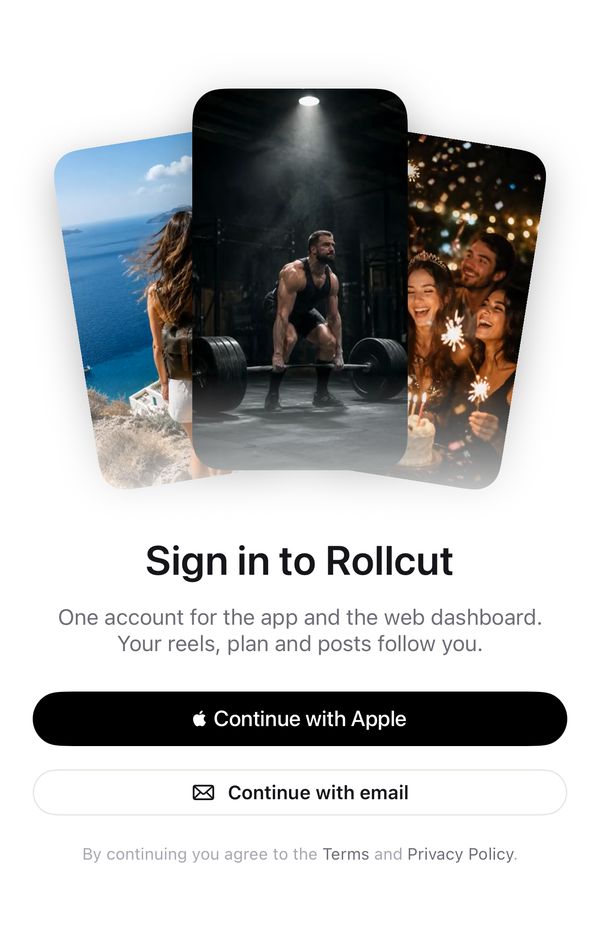
Rollcut uses one account for the app and the web dashboard. Sign in with Apple, or with your email: we send a 6-digit code, no password needed. If you used Rollcut before accounts, your reels and free-reel count come with you the first time you sign in.
Didn't get the code? Check spam, wait a minute, then tap Resend code.
Sign out
Tap your picture at the top right of Home to open Profile, then Account > Sign out. Reels you saved stay on this iPhone. Sign in again to keep making reels.
Delete your account
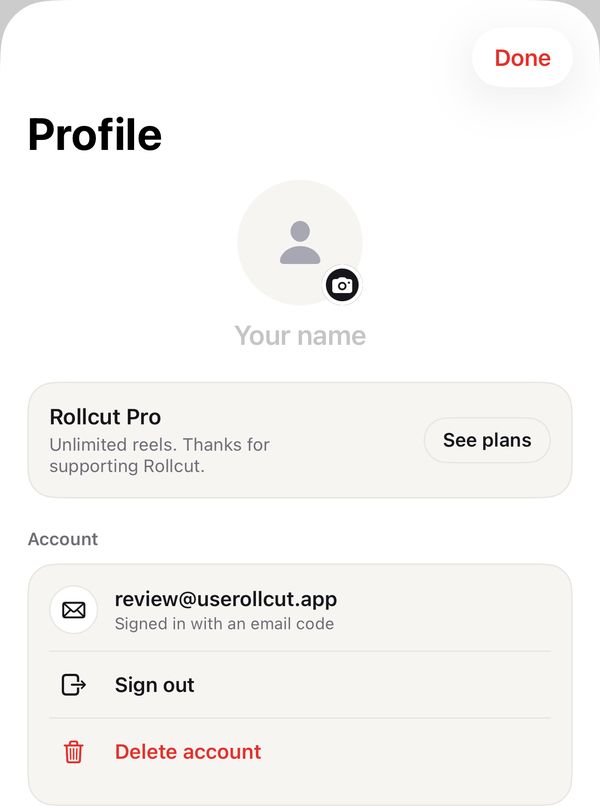
Tap your picture at the top right of Home to open Profile, then Account > Delete account, and confirm. This deletes your account, your reel history, feedback and connected posting accounts, and scheduled posts that haven't gone out. Reels saved to Photos stay on your iPhone.
Deleting doesn't cancel an App Store subscription: tap Manage subscription on that screen first.
What stays on your iPhone
Rollcut edits on your iPhone: your clips, captions, Director, Clip Finder and translations are made on the phone, and your finished reels are never uploaded.
To cut the ums and retakes from a talking reel, Rollcut sends the words of its transcript (text only) to our AI, which plans the cuts. With Studio-grade transcription on, the audio of talking clips (never the video) goes to our transcription provider first. With AI watching on (Pro), a small, low-resolution copy of your clips goes to our AI so it can pick better moments. None of this is sent until you allow it: Rollcut asks before your first reel, and you can change it in Settings > Transcription > Use AI services. We don't keep any of it after those requests. The Privacy Policy names each provider.
Other things that go to our servers: your account and free-reel count, feedback you send, template recipes you share (never the video), and app analytics with typing and video hidden. See the Privacy Policy for the full list.
Studio-grade transcription
For talking reels, Rollcut can transcribe the speech in the cloud for sharper captions and cleaner cuts. Only the audio of clips that are mostly speech is sent, securely, to our transcription provider, then deleted. Your video isn't sent for transcription.
It runs only after you allow AI services (Rollcut asks before your first reel). To keep everything on your iPhone, open Settings > Transcription and switch off Use AI services or Studio-grade transcription. If you don't see that setting, transcription already happens on your iPhone. If the cloud doesn't answer within 30 seconds, Rollcut transcribes on your iPhone instead.
Still stuck?
A person reads every message. Message us, or in the app: Profile → Help → Help articles → Message us.